

Just set up your computer for the first time? Learning How to Use Your New PC doesn’t have to be complicated. In this 2025 beginner’s guide, you’ll discover 10 essential tips to get started the right way. From installing must-have software and mastering shortcuts to using hidden Run commands and securing your system, these practical steps will help you work smarter, stay safe, and enjoy your PC from day one.
Table of Contents
Toggle1. Install Essential Software with Ninite
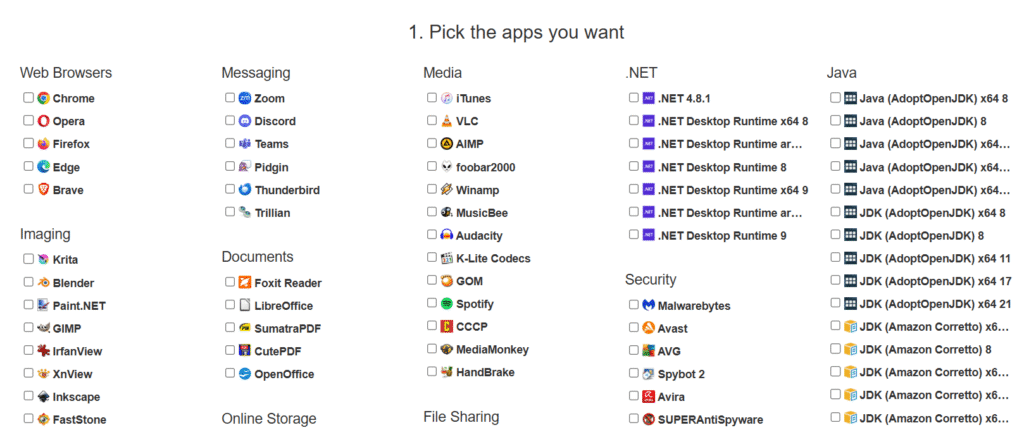
One of the easiest ways to begin learning How to Use Your New PC is by installing the right apps without wasting hours. Ninite lets you choose multiple programs (like Chrome, VLC, Zoom) and installs them automatically — no pop-ups, no junk, and no manual clicking.
2. Enable and Trust Built-In Antivirus
When learning How to Use Your New PC, security comes first. Microsoft Defender Antivirus is built into Windows 10 & 11 and protects against malware in real time. Turn it on in Settings → Privacy & Security → Windows Security. For extra safety, consider adding Malwarebytes or Bitdefender.
3. Customize Power Settings
Go to Control Panel → Power Options to choose between better battery life or faster performance. If you’re on a desktop, “High performance” mode is a good pick.
4. Organize Your Desktop Early
Don’t let icons take over. Create folders for documents, images, and apps. A clean desktop keeps your PC looking tidy and makes finding files faster.
5. Use “Run” Commands for Quick Access
Press Win + R and type these commands to speed up work:
cmd→ Command Promptcontrol→ Control Panelmsconfig→ System Configurationservices.msc→ Manage background servicesregedit→ Registry Editor (advanced users)notepad→ Open Notepad
Cleanup Commands:
temp→ Windows temporary files folder%temp%→ User temporary files folderrecent→ Recently opened filesprefetch→ Prefetch data (clean occasionally)tree→ Show folder structure in Command Prompt

6. Learn the Most Useful Keyboard Shortcuts
Keyboard shortcuts make How to Use Your New PC much faster:
| Shortcut | Action |
|---|---|
| Ctrl + C / V | Copy / Paste |
| Alt + Tab | Switch open apps |
| Win + E | Open File Explorer |
| Win + L | Lock your PC |
| Win + D | Show desktop |
| Ctrl + Shift + Esc | Open Task Manager |
7. Backup Your Important Files
A smart step when learning How to Use Your New PC is setting up backups. Use OneDrive, Google Drive, or File History to keep files safe in case of crashes.
8. Create a Recovery Drive
In case Windows fails to start, a recovery drive can save you. Search for “Create a recovery drive” in the Start menu and follow the instructions with a USB stick.
9. Keep Windows Updated
Part of knowing How to Use Your New PC is keeping it secure and fast. Turn on automatic updates in Settings → Windows Update. Updates fix bugs, add features, and patch security risks.
10. Do a Full Shutdown (Skip Sleep Mode)
Knowing How to Use Your New PC means knowing how to turn it off completely.
Command Prompt:
shutdown /s /f /t 0for instant power-off.Shift + Shut Down: Hold Shift while clicking Shut down to bypass Fast Startup.
Disable hibernation: Run
powercfg.exe /hibernate offto stop hybrid shutdown.
Final Thoughts
These tips on How to Use Your New PC will help you work faster, stay secure, and keep your computer healthy. Start with software setup, master shortcuts, and keep your system clean — you’ll feel like a pro in no time.
FAQs
Yes—even with Microsoft Defender, an extra layer of protection can be useful.
Install updates as soon as they are available to stay secure.
Yes—it installs official versions of apps directly from the developers.